
The VMware Health and Security Toolkit (HST) is a platform provided by Broadcom that helps administrators perform health checks, configuration validation, and security assessments across VMware infrastructure environments.
The tool collects configuration data from components such as:
- vCenter Server
- ESXi Hosts
- Virtual Machines
- vSAN
- NSX
- SDDC Manager
It then analyzes the collected data against security controls and best practices to identify potential risks or configuration issues.
This guide walks through the full process of deploying and using the HST appliance, including environment validation and reviewing generated security reports.
All screenshots used in this article have been sanitized to remove environment specific identifiers while preserving the functionality of the toolkit. Sensitive information such as IP addresses, hostnames, credentials, and infrastructure identifiers have been intentionally blurred.
Downloading the HST Toolkit #
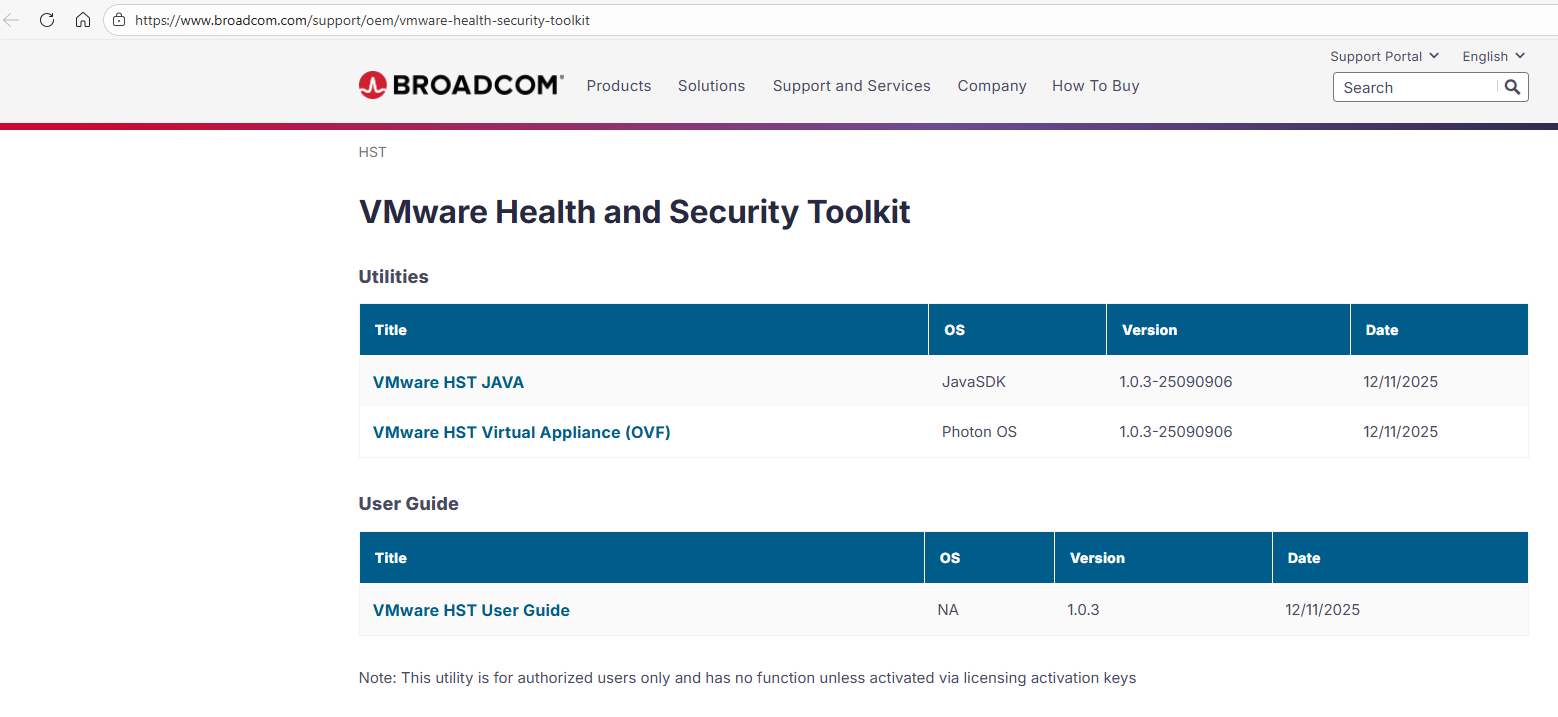
The VMware Health and Security Toolkit can be downloaded from the Broadcom support portal.
https://www.broadcom.com/support/oem/vmware-health-security-toolkit
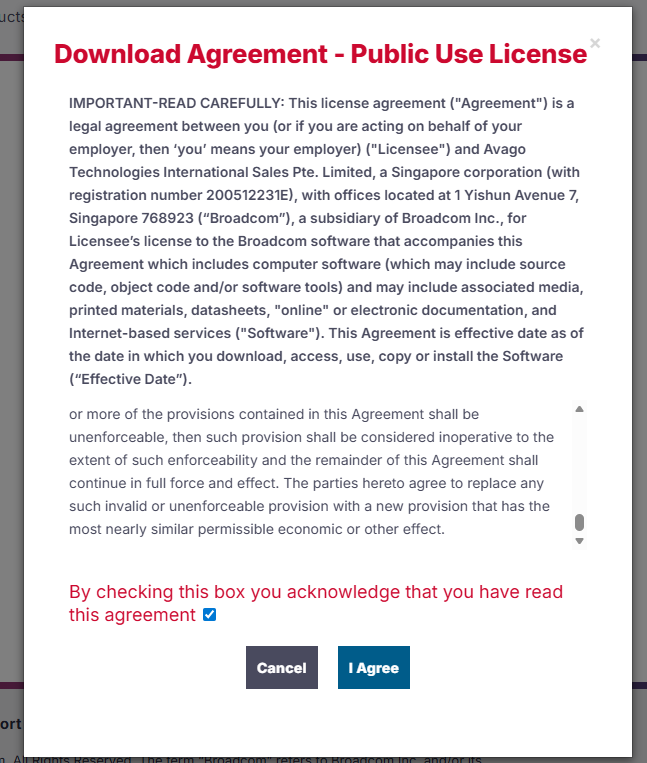
Before downloading the toolkit you must accept the Broadcom license agreement.
Deploying the HST Virtual Appliance #
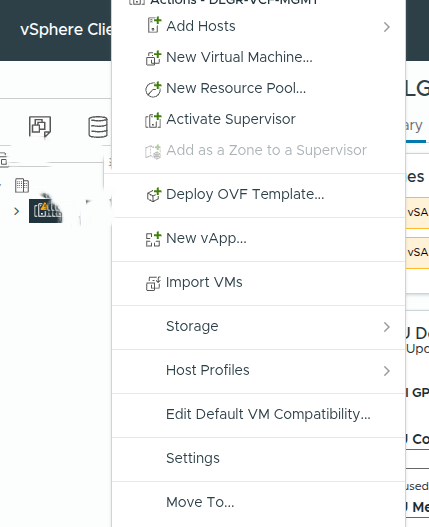
The toolkit is delivered as an OVA appliance and deployed through the Deploy OVF Template workflow in the vSphere Client.
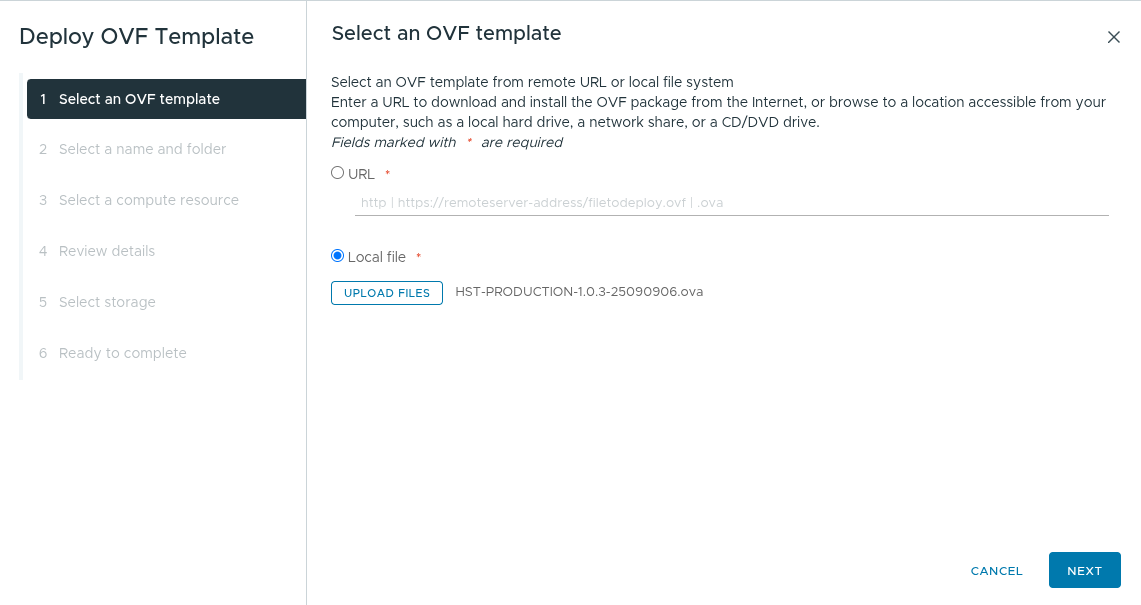
Deploy OVF Template #
Upload the downloaded OVA file.
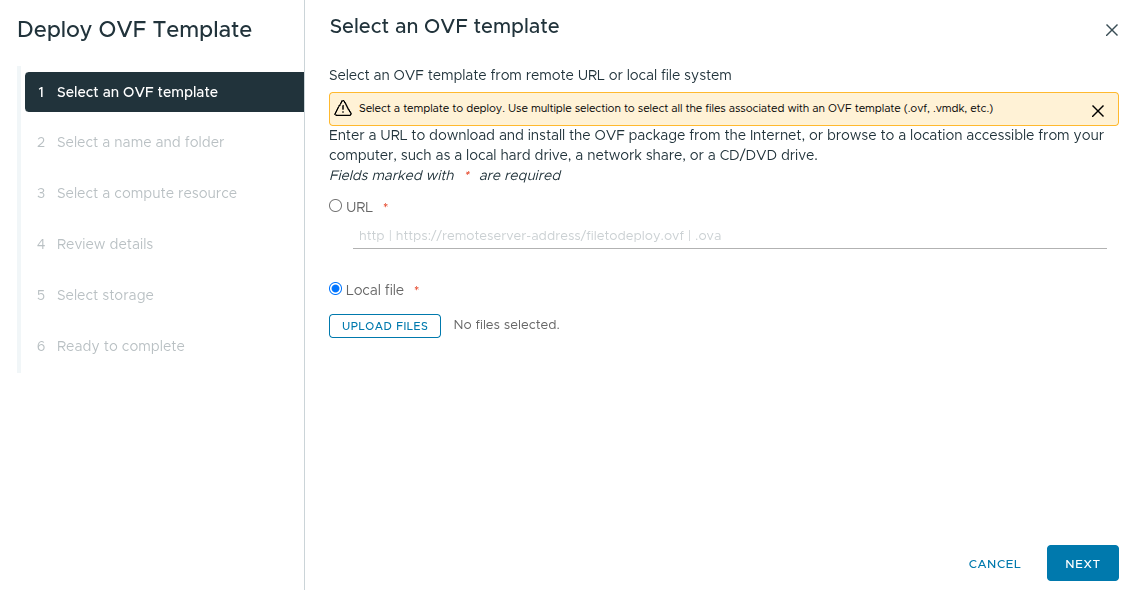
Once uploaded the appliance template appears in the deployment wizard.
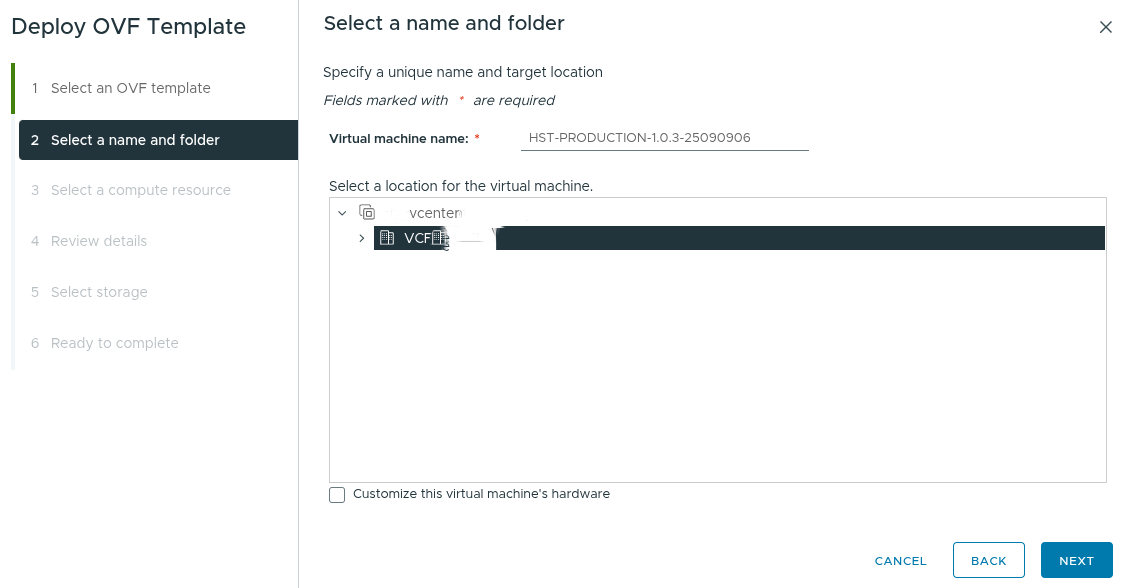
Provide Name and Folder #
Specify the virtual machine name and inventory location.
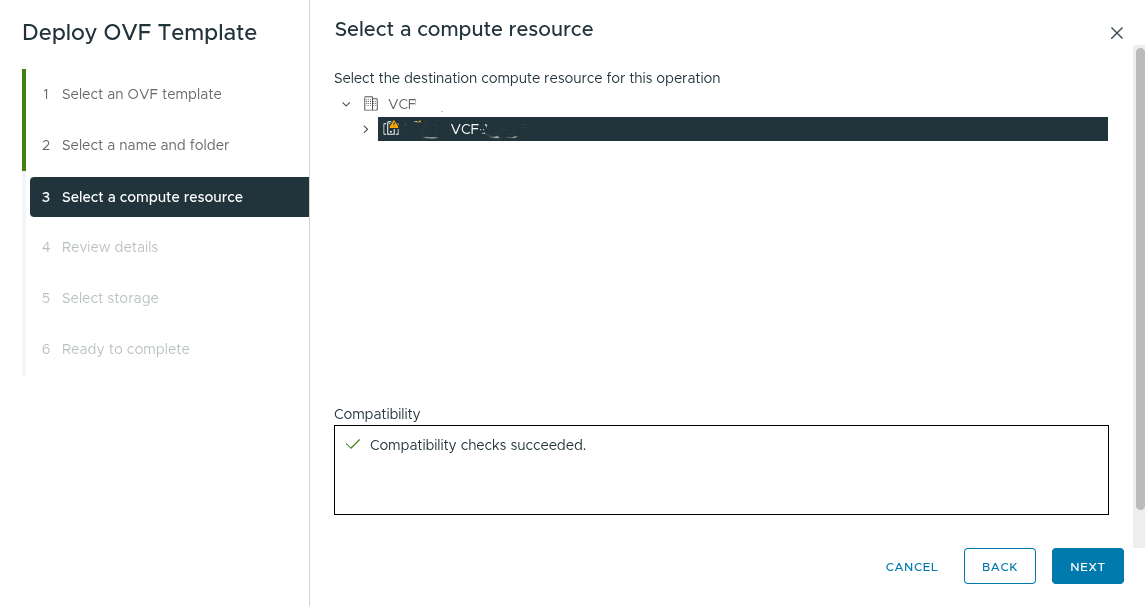
Select Compute Resource #
Choose the ESXi host or cluster where the appliance will run.
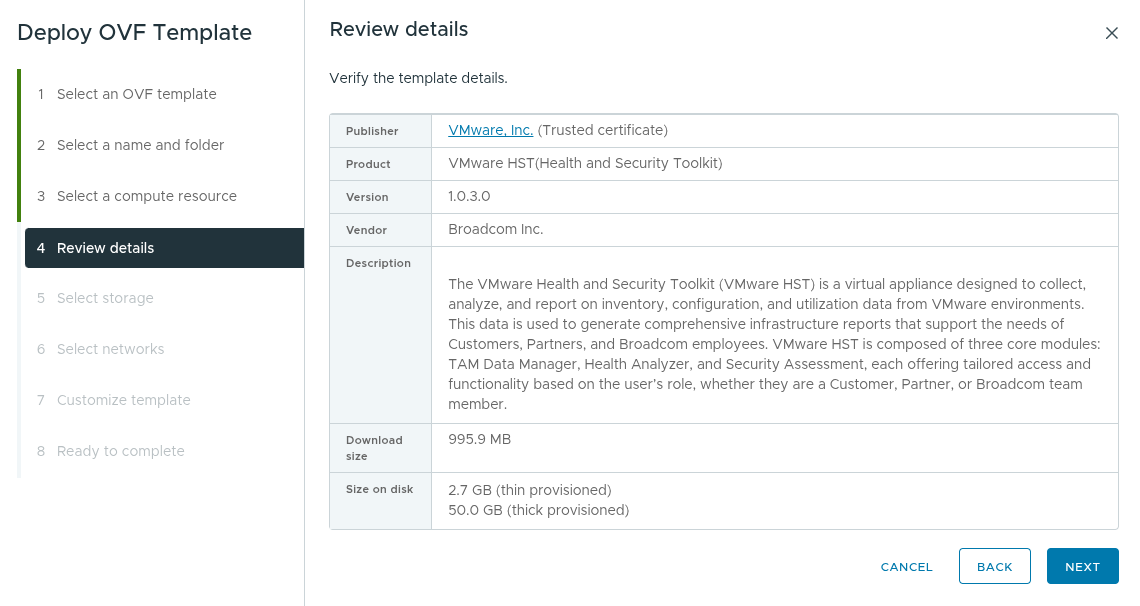
Review Deployment Details #
Verify the OVF template information.
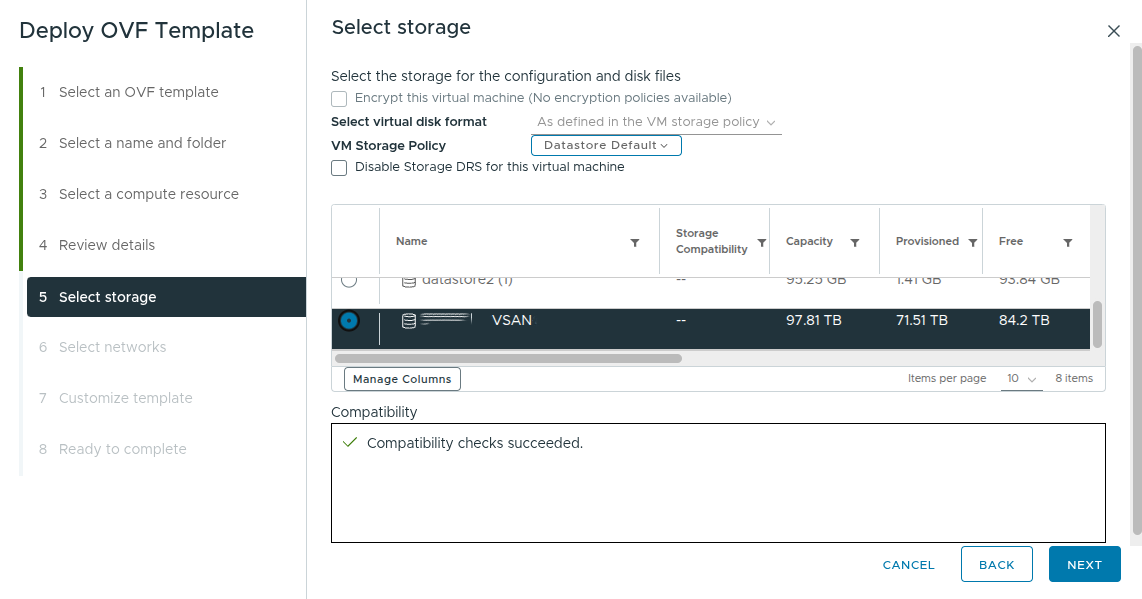
Select Storage #
Choose the datastore where the appliance disks will reside.
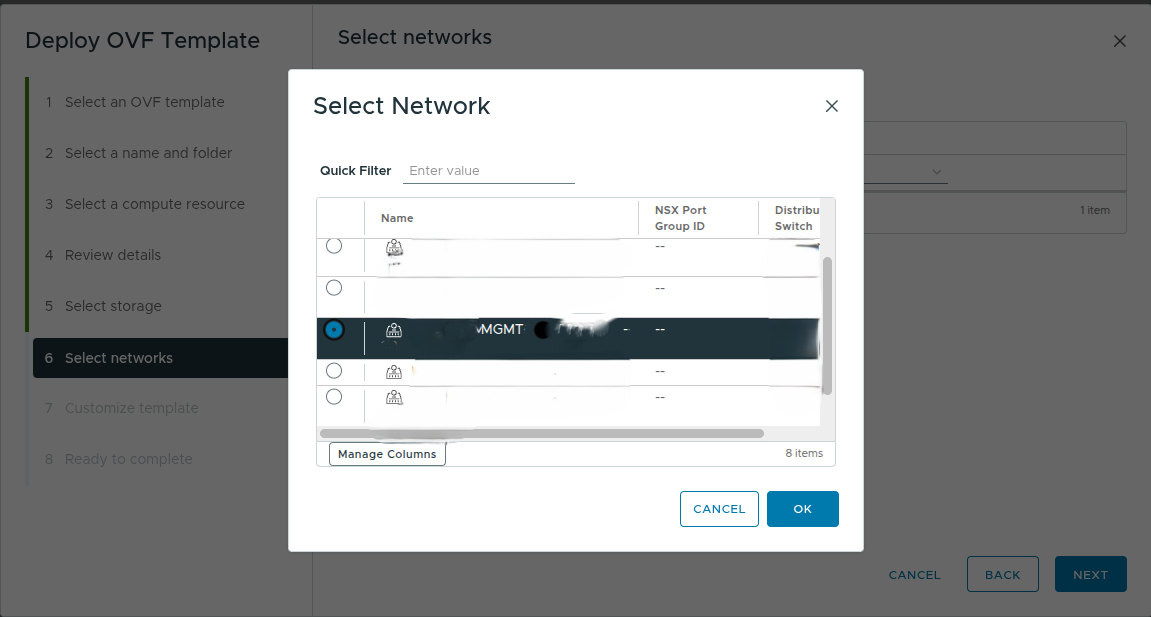
Configure Networking #
Select the network that will provide connectivity to the environment.
DNS Requirement #
Before powering on the appliance it is recommended to create a DNS record for the HST virtual machine.
The toolkit is accessed through a web interface and using DNS allows administrators to access the system using a hostname instead of an IP address.
Requirements:
• Allocate 1 IP address for the HST appliance
• Create a DNS A record for the hostname
• Ensure forward DNS resolution is working
Example:
Hostname
hst.domain.local
IP Address
10.10.10.50
Once the appliance is powered on you can navigate to the toolkit in a browser using the hostname.
Example:
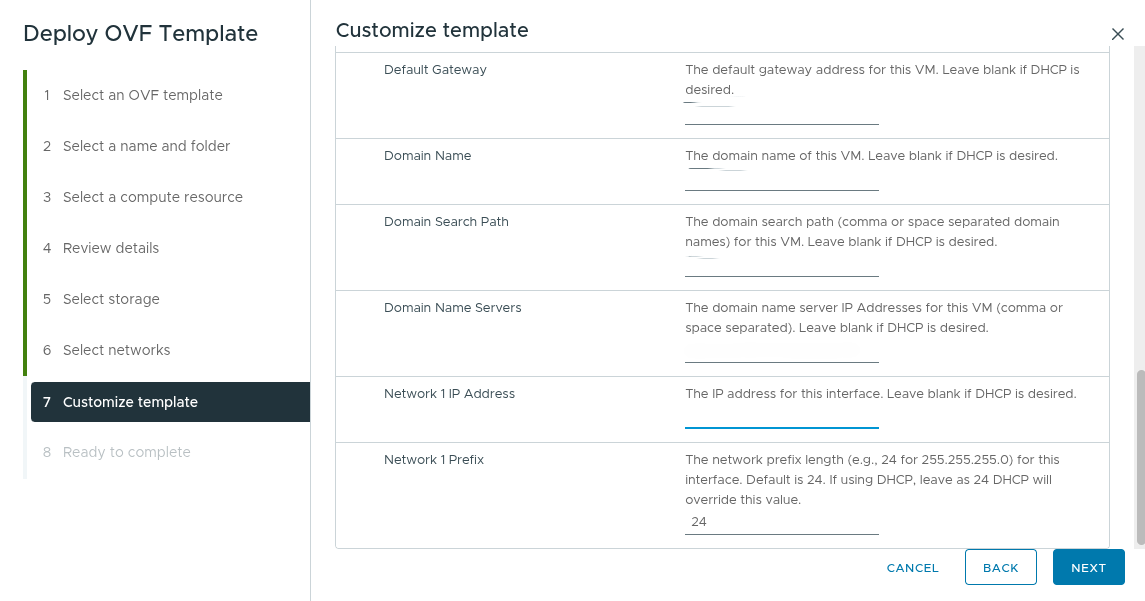
Customize Template #
Configure credentials and networking parameters.
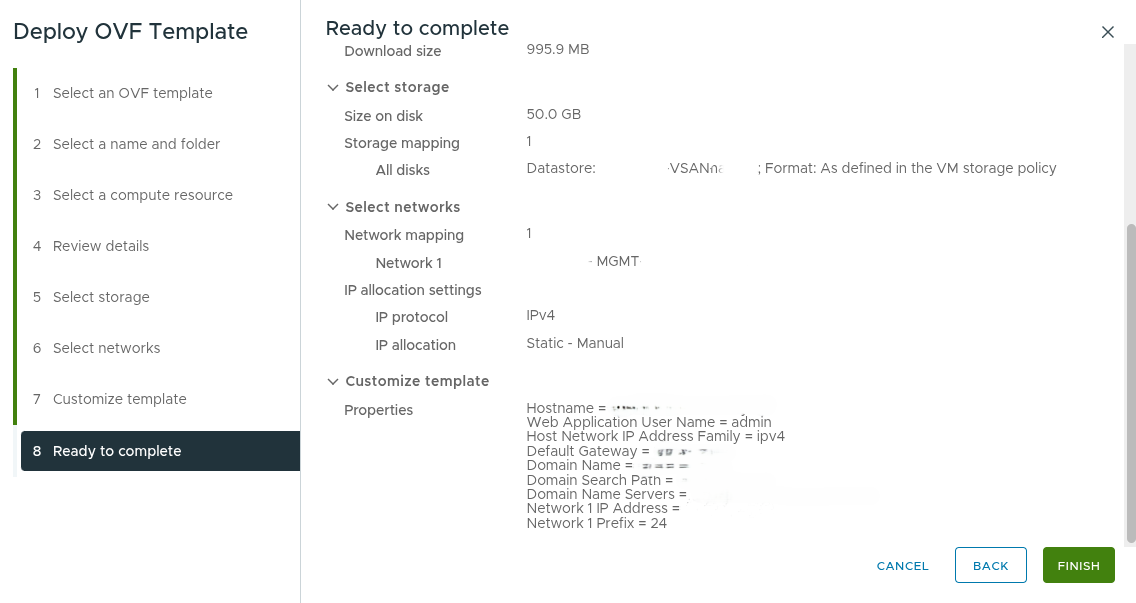
Complete Deployment #
Review the summary and finish the deployment.
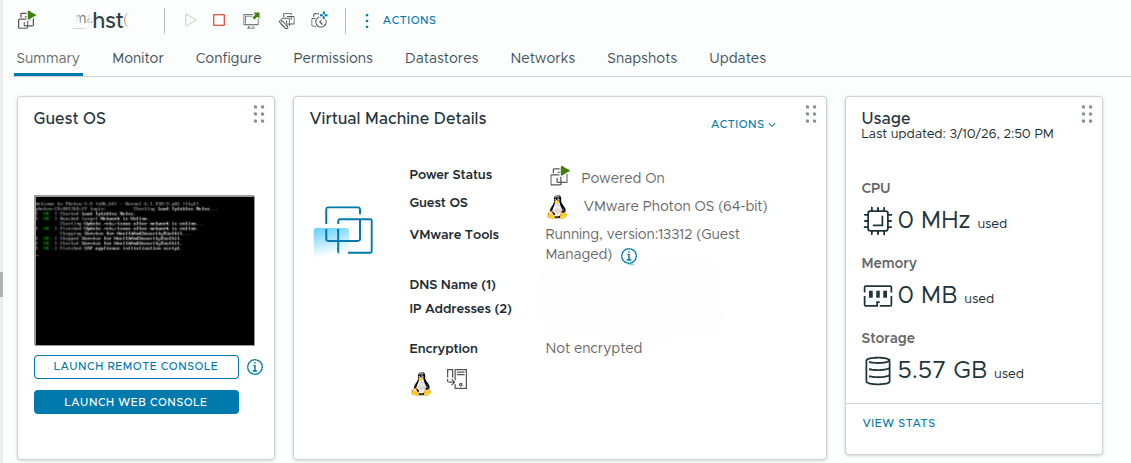
Powering On the Appliance #
Once deployment finishes power on the appliance.
Initial Login and License Agreement #
After the appliance has powered on and finished booting, open a web browser and navigate to the hostname that was created in DNS for the HST appliance.
For example, using the DNS entry created earlier:
Accessing the toolkit using the hostname ensures proper DNS resolution and allows administrators to consistently reach the system without relying on direct IP addresses.
When navigating to the URL for the first time, the Health and Security Toolkit login interface will appear.
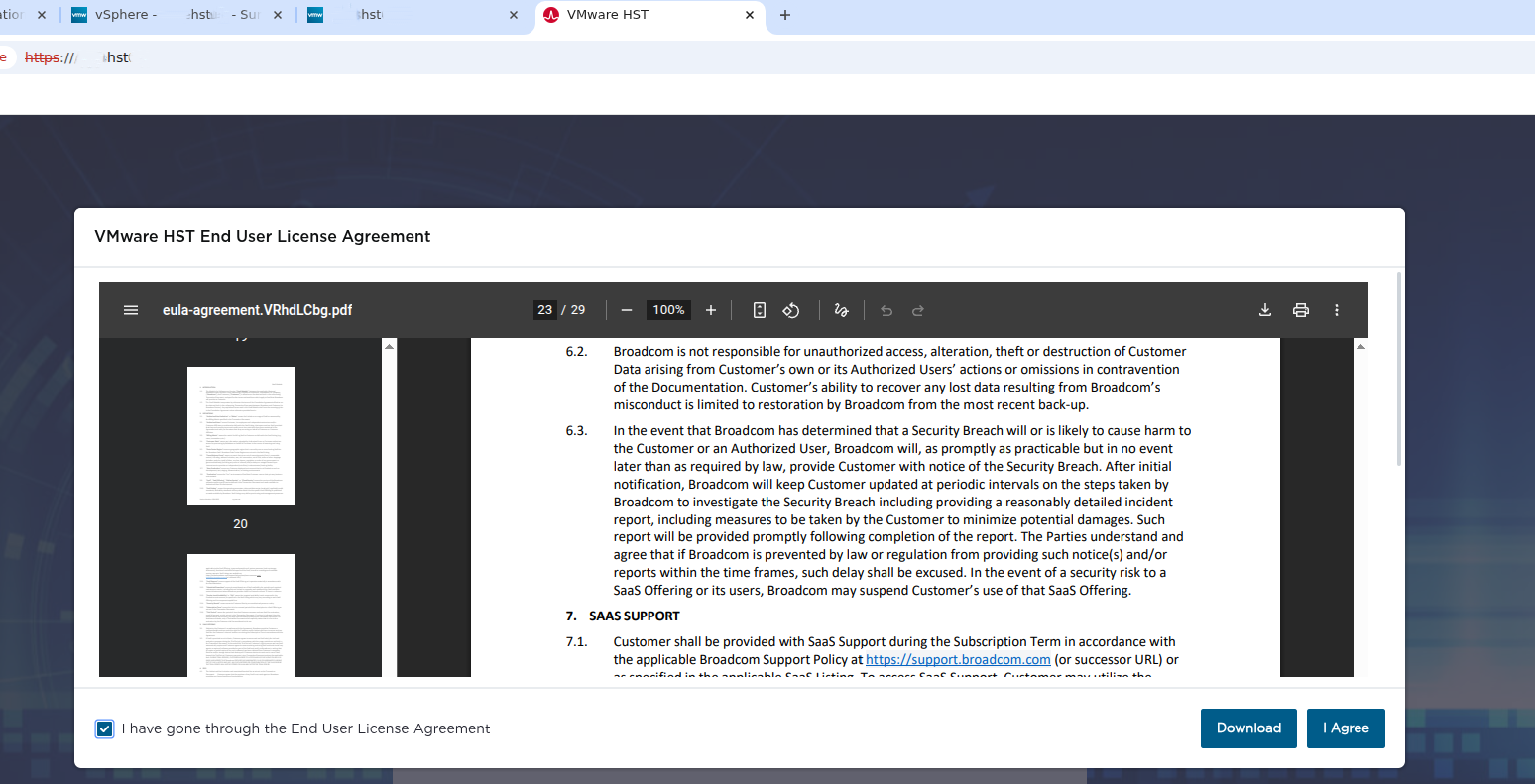
Before using the platform, the Broadcom license agreement must be accepted. Once accepted, you can proceed with authentication and complete the offline login process.
Offline Login and Registration #
HST supports offline login which is common in isolated or restricted environments such as federal or air gapped infrastructure.
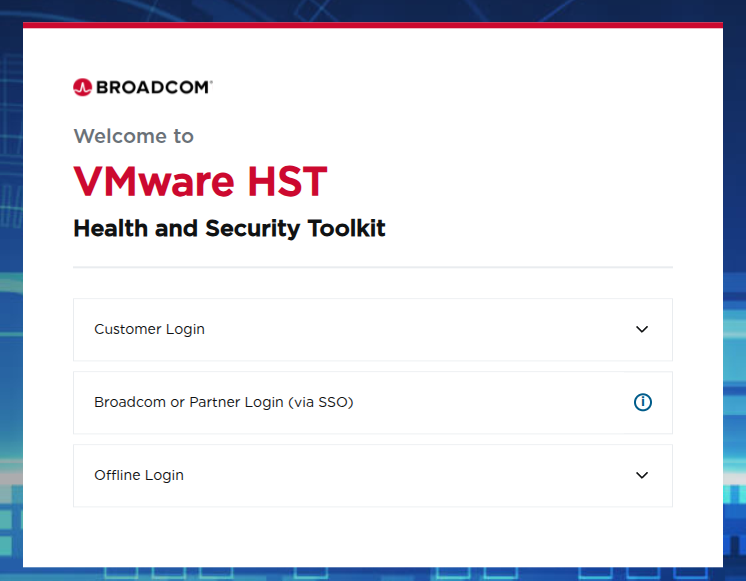
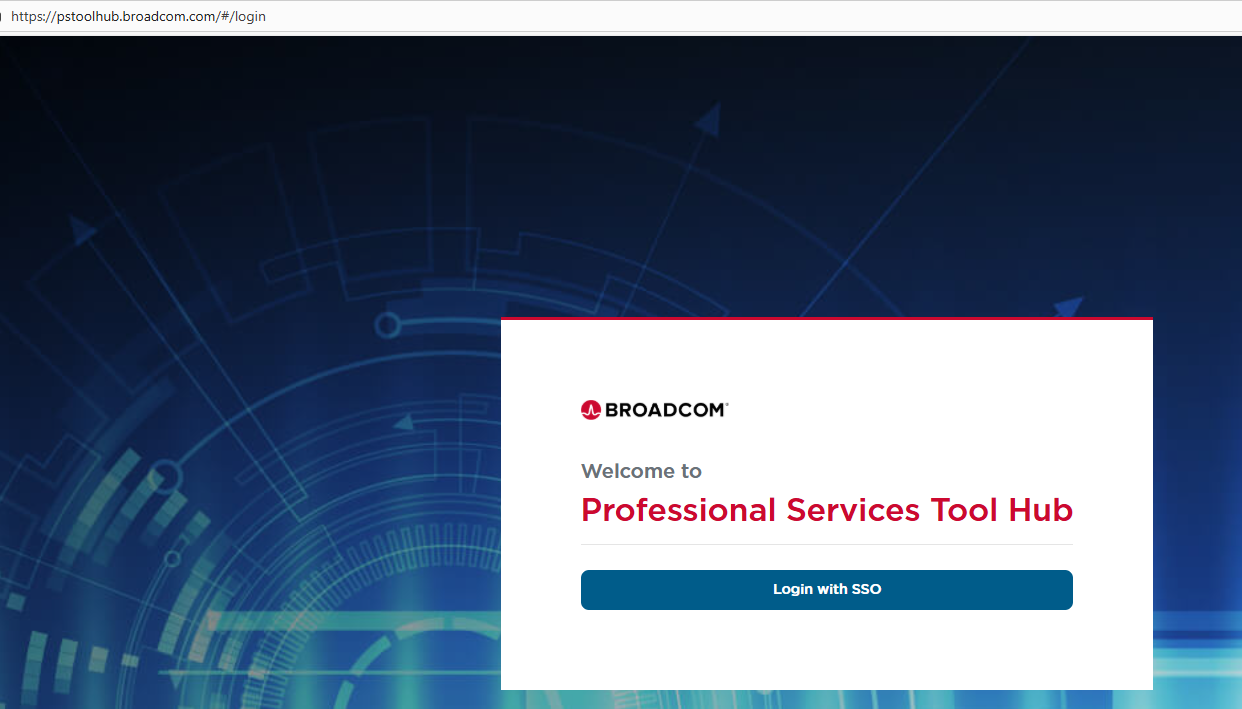
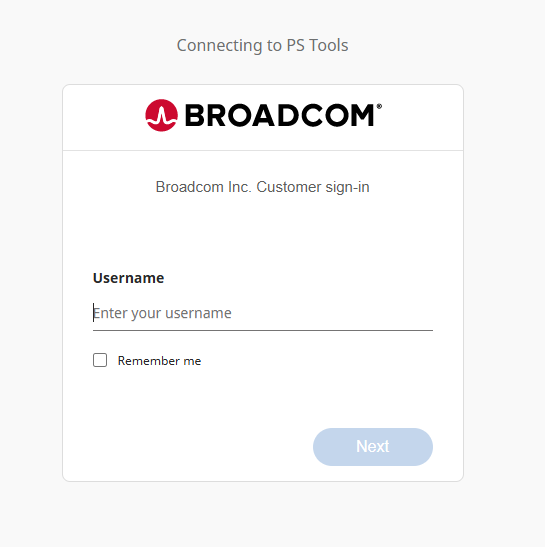
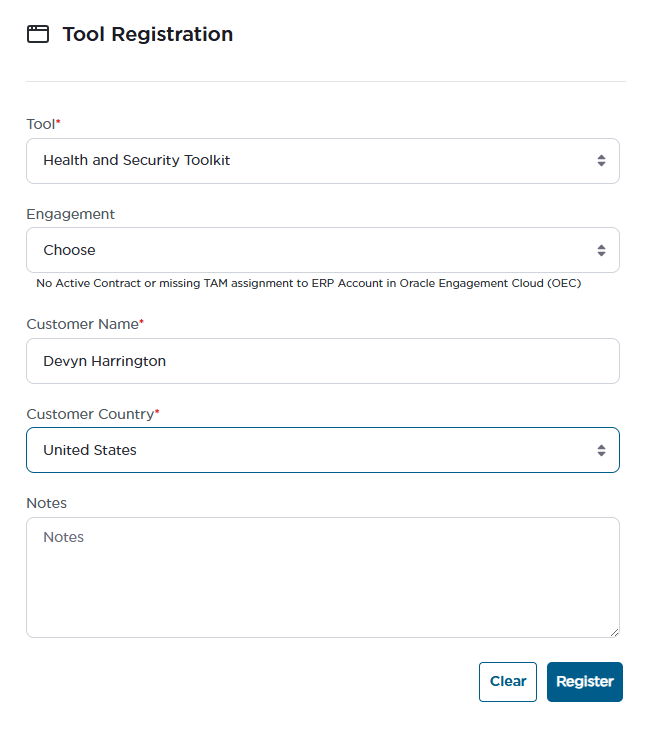
To obtain the required registration key navigate to the Broadcom Professional Services Tool Hub.
https://pstoolhub.broadcom.com/#/login
After authentication request an activation key for the Health and Security Toolkit. The key will be delivered to your email address.
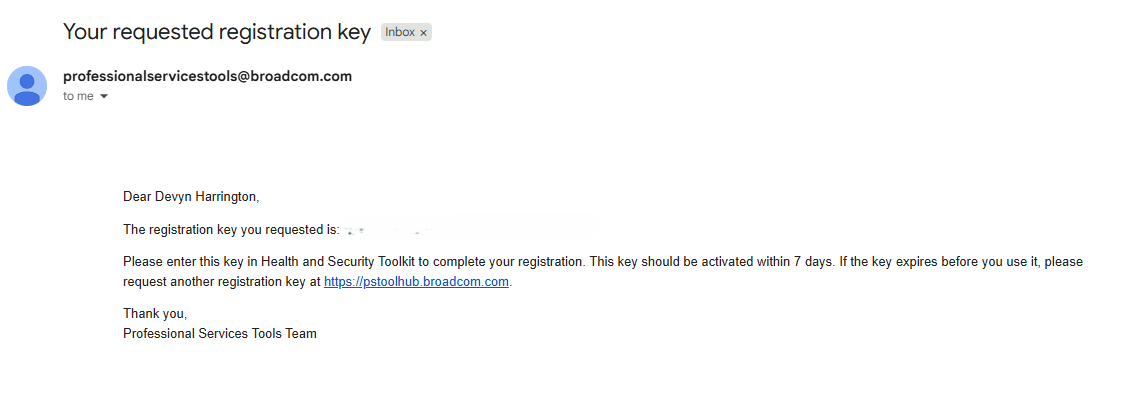
Completing Authentication #
Continue through the offline login process.
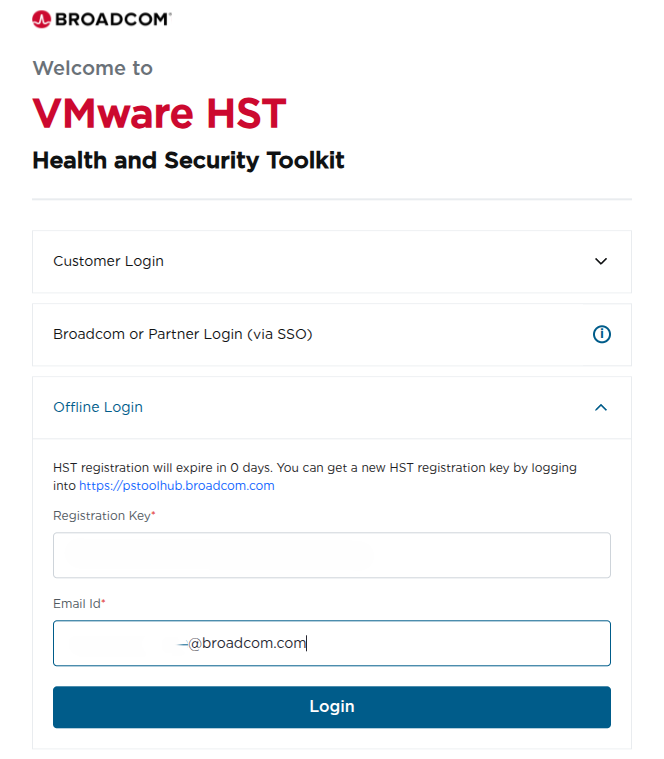
Once authentication is successful the HST dashboard becomes available.
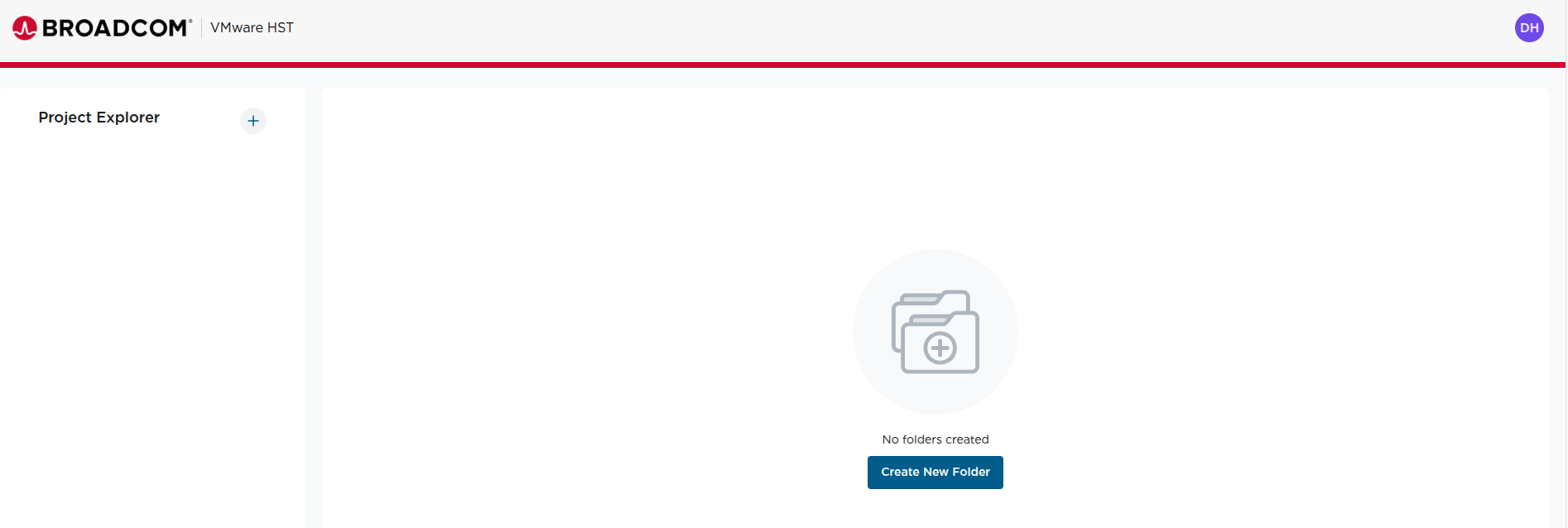
Creating an Assessment Project #
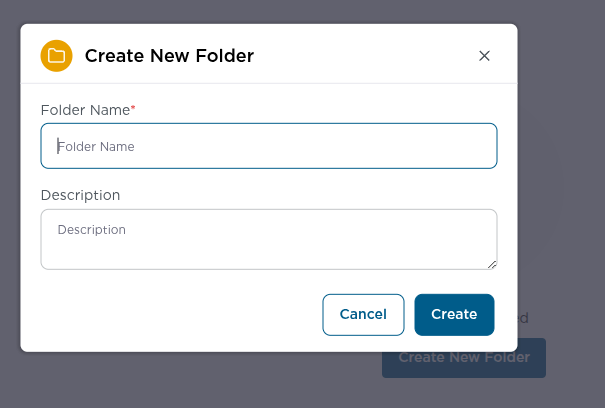
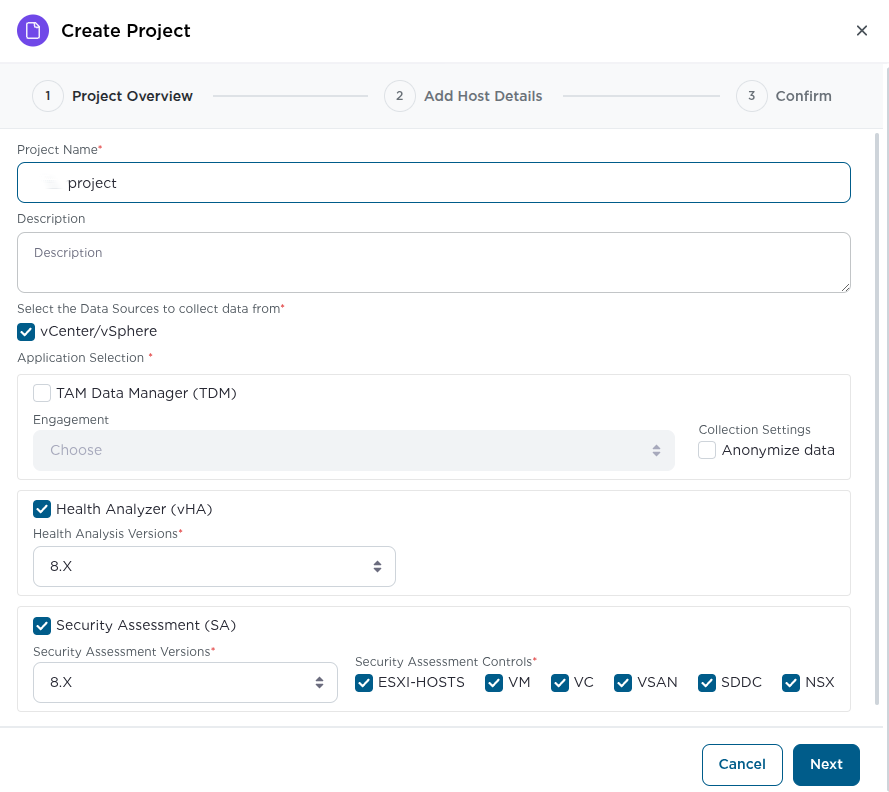
Projects are used to organize health and security assessments.
Create Folder #
Configure Project Details #
Validating Infrastructure Targets #
The toolkit validates connectivity to infrastructure components before the assessment can begin.
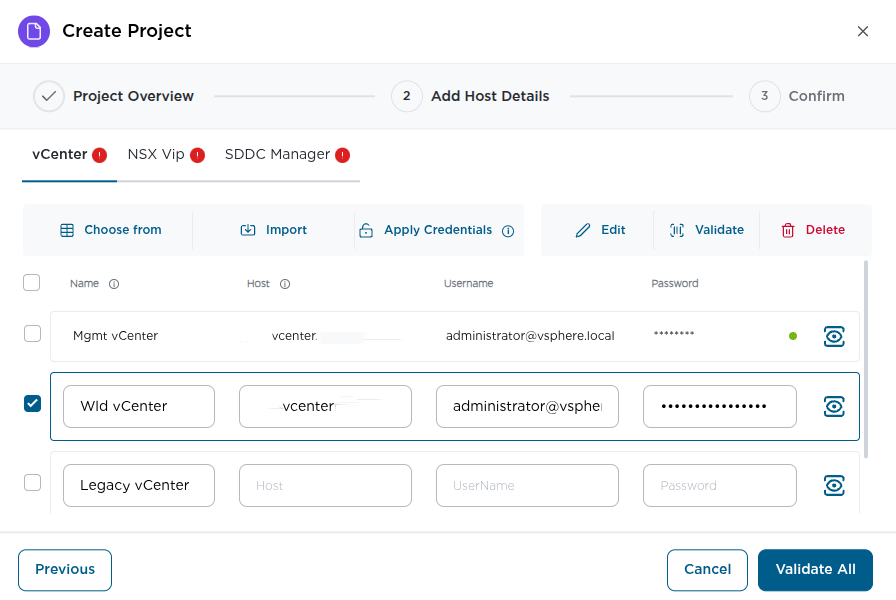
When configuring validation settings the Host field should contain the FQDN of the vCenter Server not the ESXi host.
Even though the field is labeled Host the toolkit connects through vCenter Server APIs to collect configuration data from the environment.
Correct example
vcenter.domain.local
Incorrect example
esxi01.domain.local
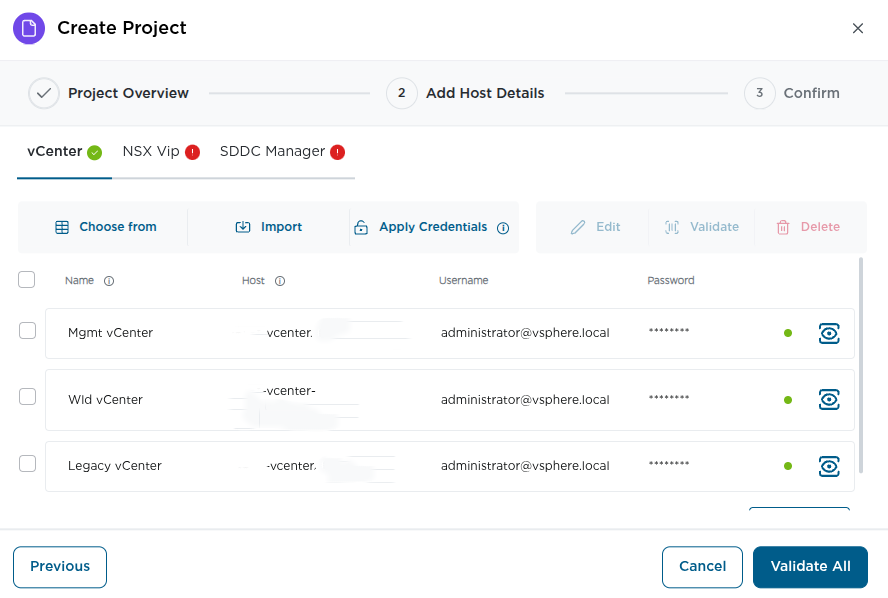
Example validation for NSX.
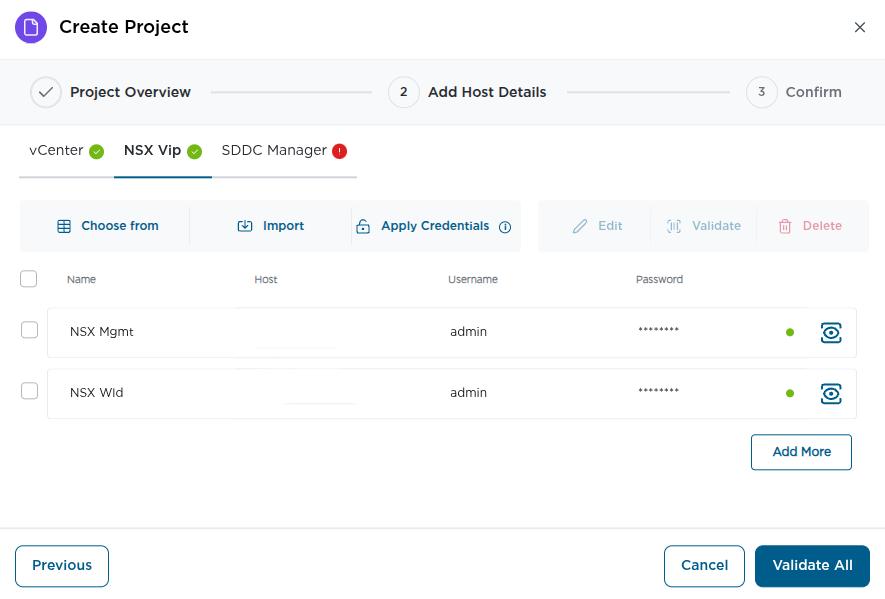
When validating the NSX environment the toolkit requires the NSX Manager Cluster VIP.
To locate the NSX VIP
1 Log into the NSX Manager UI
2 Navigate to System
3 Select Appliances
4 Locate the Cluster VIP
5 Copy the value and paste it into the validation field
Validation for SDDC Manager.
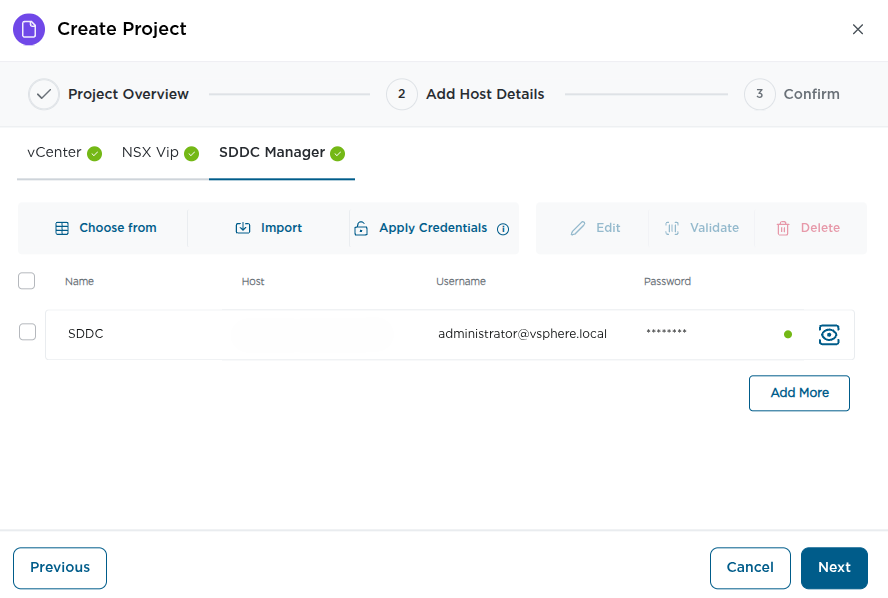
Running the Assessment #
Submit the project to begin data collection.
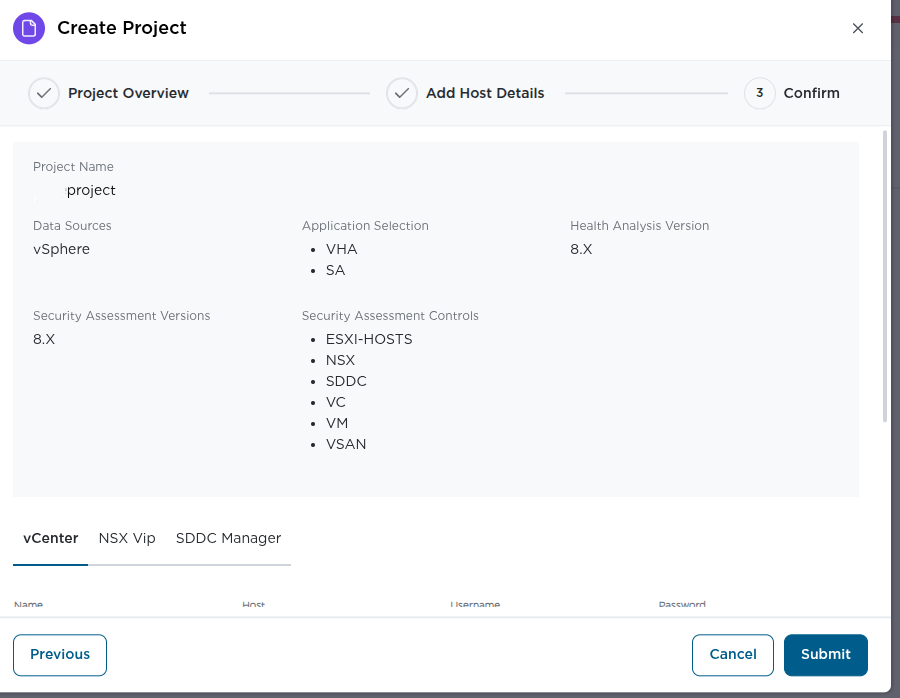
Submission begins.
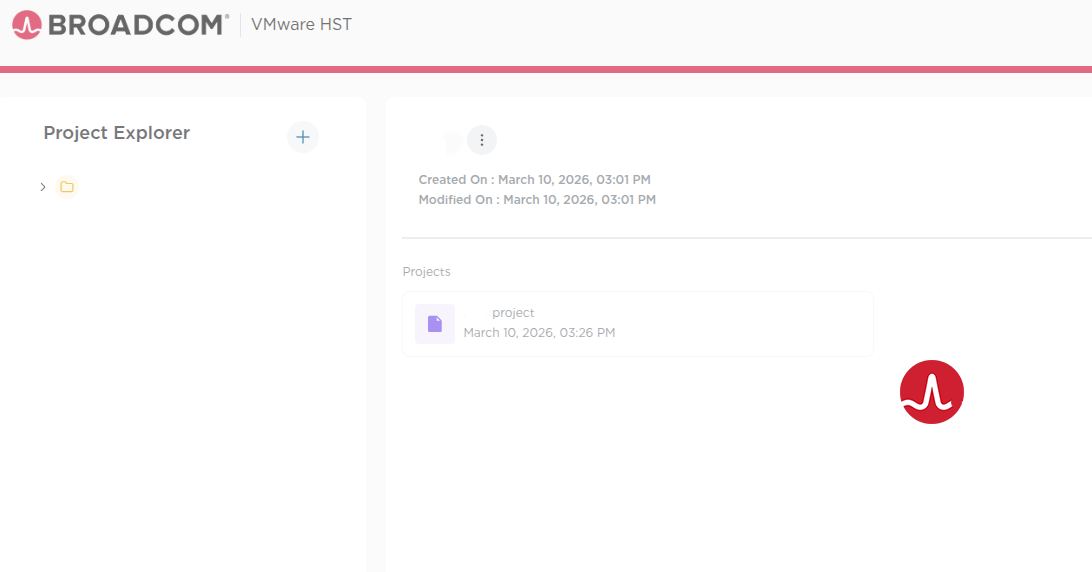
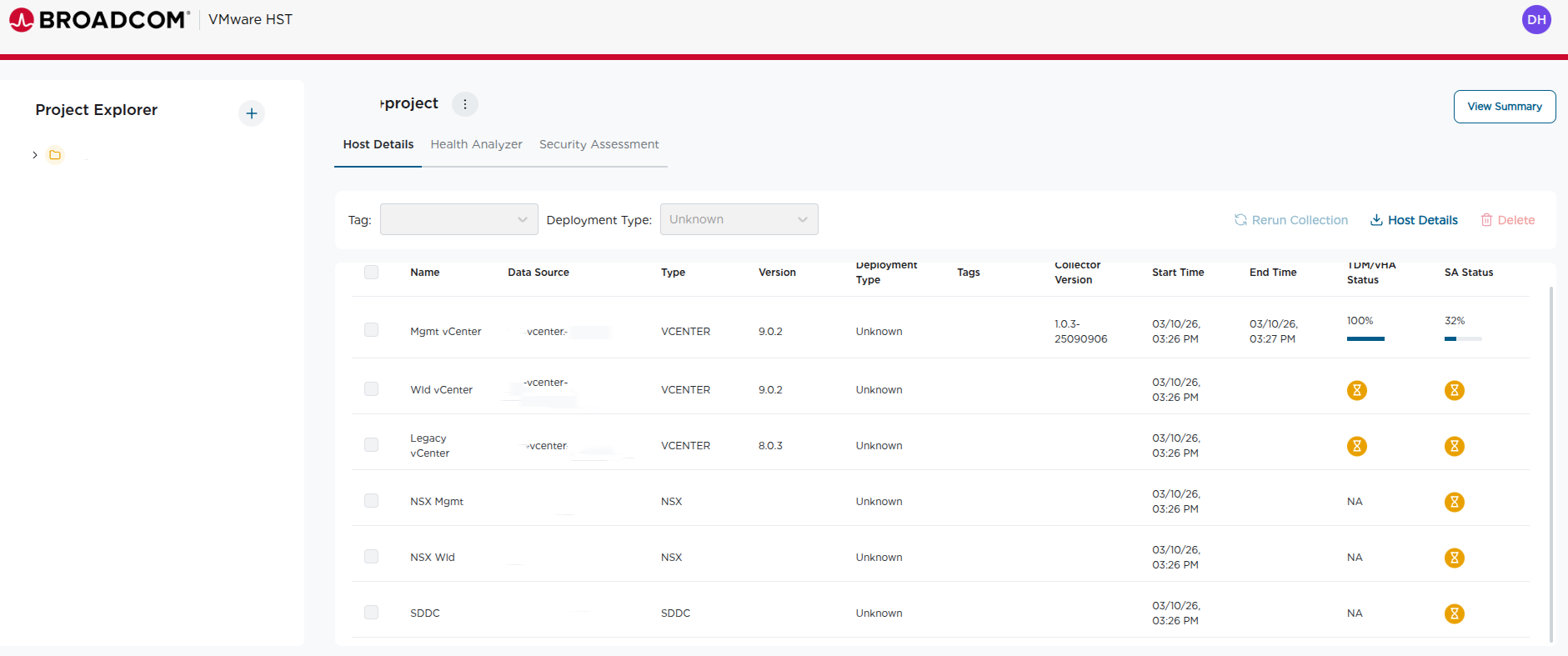
The toolkit begins collecting infrastructure data.
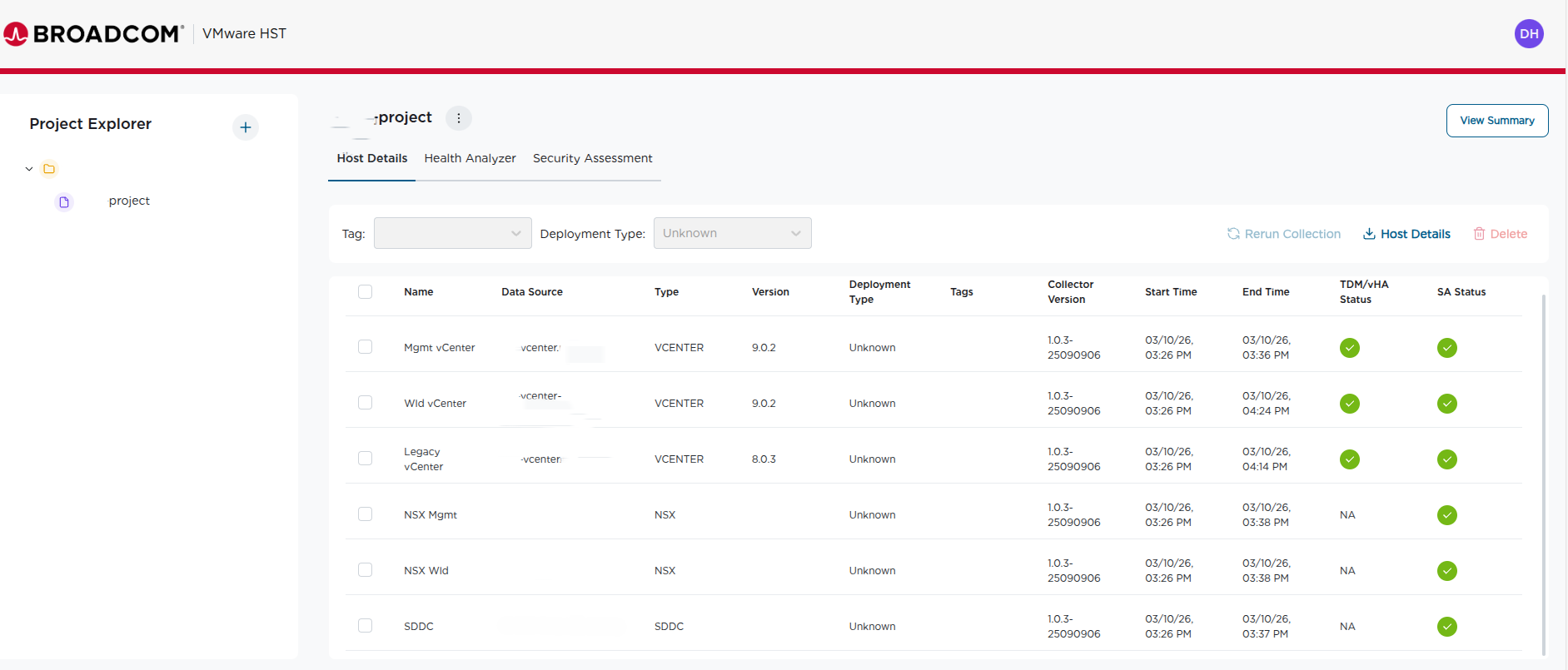
When finished the results dashboard becomes available.
Reviewing Assessment Results #
Health Analyzer #
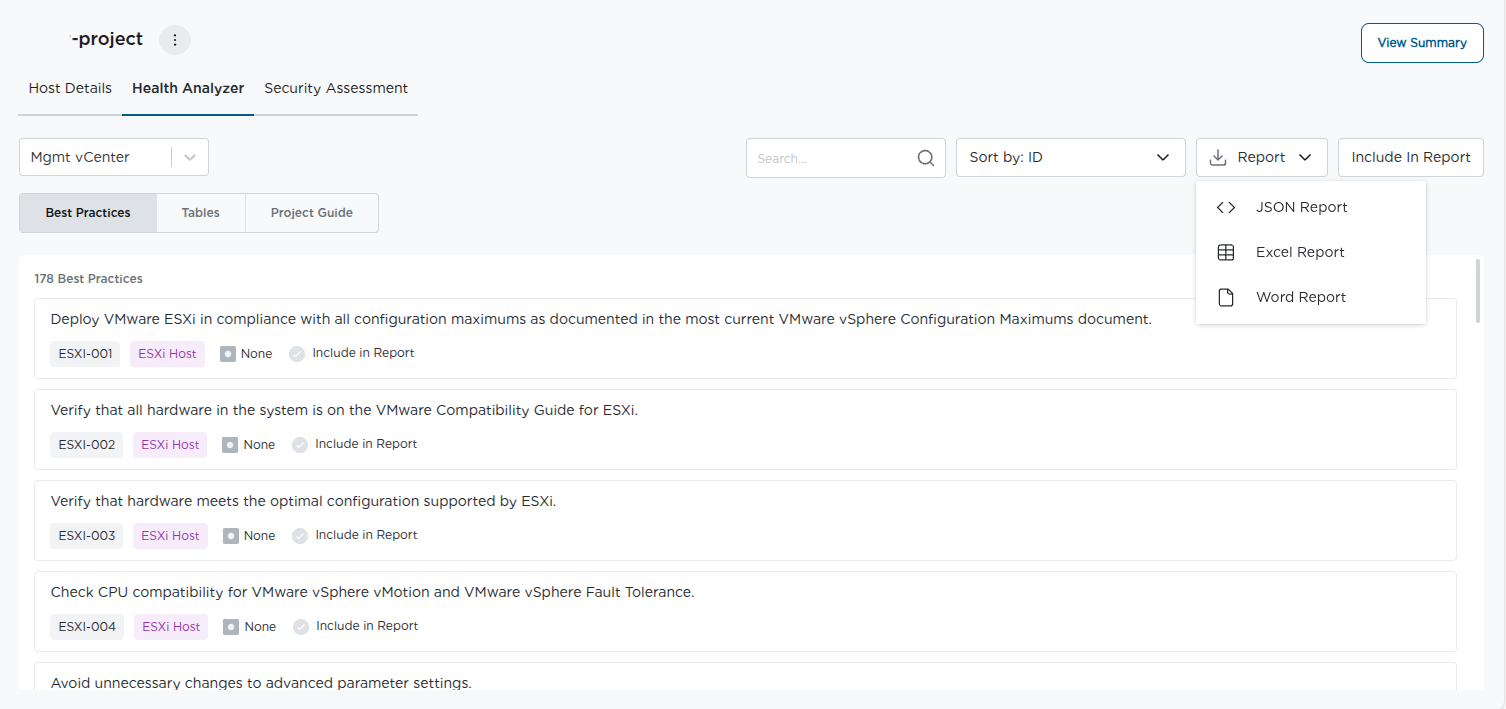
Administrators can download the Health Check Word report which contains
Executive Summary
Health Check Background
Major Findings and Recommendations
Health Check Assessment Results
Appendices and inventory
Security Assessment #
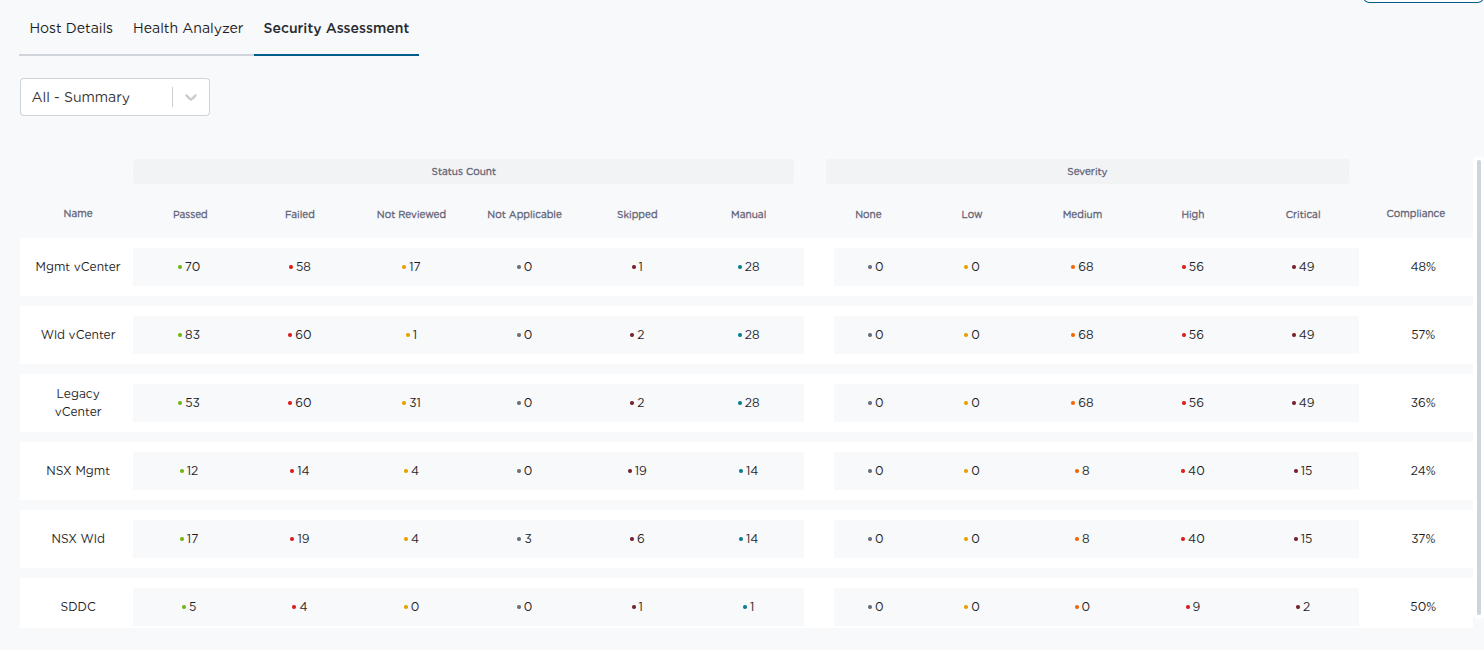
The Security Assessment module evaluates infrastructure configurations against security best practices and generates detailed findings across multiple VMware platforms.
Access to the Security Assessment module is controlled through Broadcom internal access groups. Users must be added to the appropriate group before they can request activation keys or use the module.
For this reason the toolkit is most commonly used by Broadcom Professional Services teams who can obtain the necessary access through the proper internal channels.
Generated Reports #
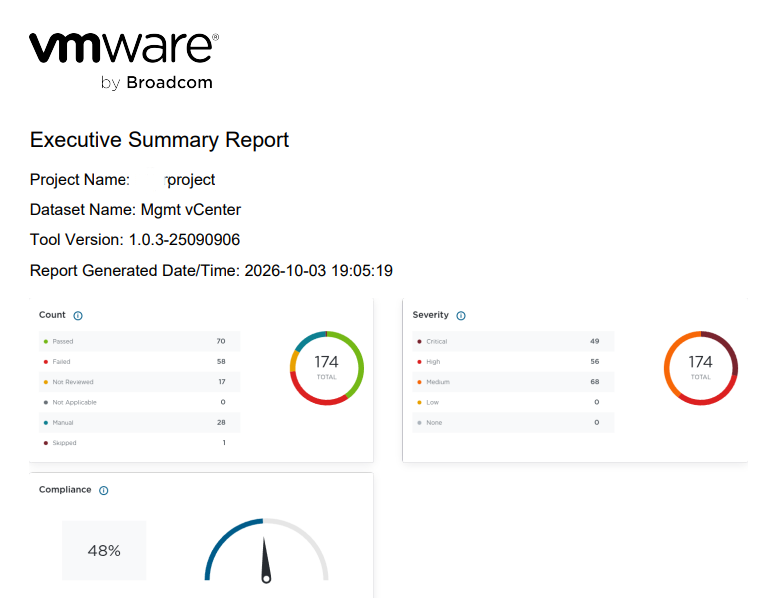
Executive Report #
Administrative Report #
The Administrative Report for the Security Assessment module is downloaded as an HTML file.
When opened, the report loads directly in a web browser and provides a structured and easy to navigate view of the assessment findings. This format allows administrators to review results, drill into individual controls, and reference remediation guidance without needing additional software.
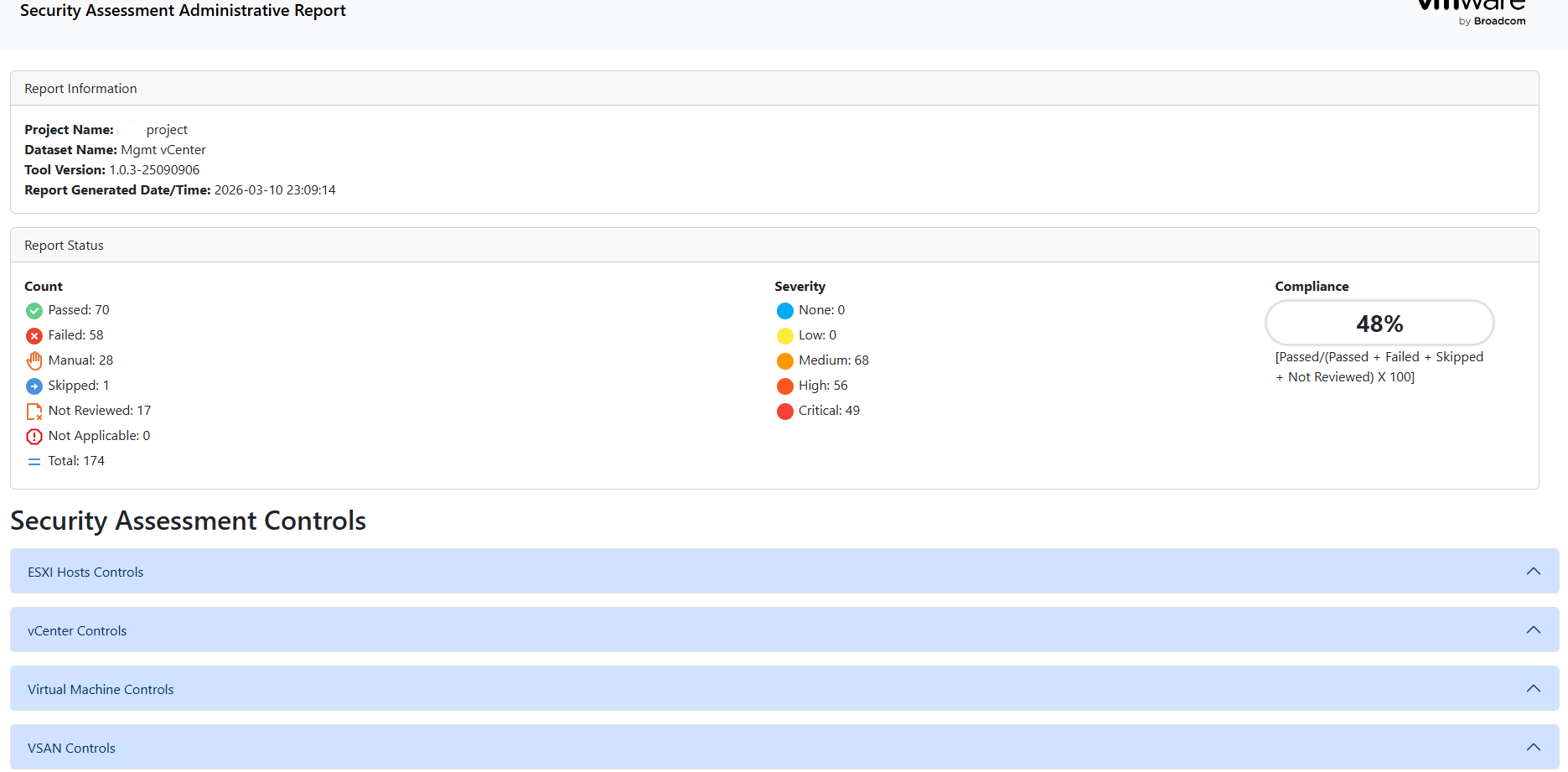
To demonstrate how these reports render in a browser, the following example administrative reports from a sandbox lab environment are provided below. These reports were generated during testing in July 2025 using HST version 1.0 and are included strictly as non production examples.
👉 Download the vCenter Administrative Report (Example Lab Report)
👉 Download the NSX Administrative Report (Example Lab Report)
👉 Download the SDDC Manager Administrative Report (Example Lab Report)
Conclusion #
The VMware Health and Security Toolkit provides administrators with a powerful method for evaluating the health and security posture of VMware infrastructure environments.
By automating configuration validation across vCenter ESXi NSX vSAN and SDDC Manager administrators can quickly identify configuration issues and security risks while receiving actionable remediation guidance.
References #
Broadcom. (n.d.). VMware Health and Security Toolkit.
https://www.broadcom.com/support/oem/vmware-health-security-toolkit
Broadcom. (n.d.). Professional Services Tool Hub.
https://pstoolhub.broadcom.com/#/login
National Institute of Standards and Technology. (2018).
Framework for Improving Critical Infrastructure Cybersecurity (Version 1.1).
https://www.nist.gov/cyberframework
National Institute of Standards and Technology. (2020).
Security and Privacy Controls for Information Systems and Organizations (SP 800-53 Rev. 5).
https://csrc.nist.gov/publications/detail/sp/800-53/rev-5/final
VMware. (n.d.). Security Hardening Guides.
https://www.vmware.com/resources/hardening-guides